Agent 64: Spies Never Die Troubleshooting & Crash Fixes
Launch crashes, black screens, and co-op disconnects on Windows PC — step-by-step fixes.
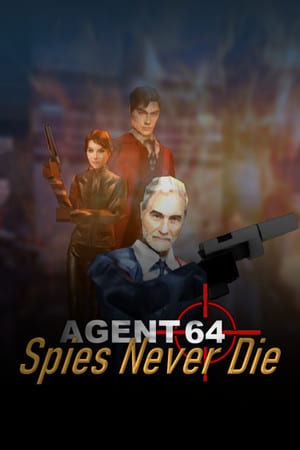
Launch-week PC games ship hot. Agent 64: Spies Never Die runs on modest GTX 1050 Ti-class hardware with DirectX 12, but players on Windows 11 still report crash on launch, black screen after splash, Steam achievement sync failures, and occasional online co-op disconnects. Replicant D6 patches over time; this troubleshooting guide collects verified community fixes from the first days after the August 11, 2026 Steam release so you can get back to Walter’s campaign without reinstalling blindly.
Before you start
Confirm baseline compatibility on System Requirements — Windows 10/11 64-bit, 8 GB RAM, and 4 GB storage. Agent 64 uses Easy Anti-Cheat (EAC) for online modes; cracked or modified executables will fail to launch online by design.
Close RGB utilities, GPU overlays (except Steam), and aggressive screen recorders before testing — hook conflicts mimic engine crashes.
Fix 1: Verify Steam game files
Corrupted downloads are the most common launch-day culprit.
- Open Steam → Library.
- Right-click Agent 64: Spies Never Die → Properties.
- Open Installed Files → Verify integrity of game files.
- Wait for completion, then relaunch.
Verification re-downloads missing assets without wiping saves when Steam Cloud is enabled.
Fix 2: Restart Steam and Windows
Simple but effective after first install or GPU driver updates:
- Exit Steam fully (system tray → Exit).
- Reboot Windows to clear stuck EAC or DirectX handles.
- Launch Steam as normal user — avoid permanent admin mode unless Fix 6 requires a one-time test.
Fix 3: Update or clean-install GPU drivers
DirectX 12 paths depend on current NVIDIA, AMD, or Intel drivers.
- Download the latest WHQL package from your GPU vendor.
- Choose clean install (NVIDIA) or factory reset (AMD Adrenalin) to remove stale D3D12 layers.
- Reboot before launching Agent 64.
Split-screen and four-player Arena stress VRAM — driver regressions show up as stutter before hard crashes. Tune graphics per Settings Reference after drivers stabilize.
Fix 4: Force DirectX 11 (-dx11)
If the game crashes during graphics initialization or after the splash logo:
- Steam → Agent 64 → Properties → General.
- In Launch Options, enter:
-dx11 - Launch the game.
DirectX 11 trades minor features for compatibility on older GPUs and some Windows 11 Memory Integrity configurations. Remove -dx11 later if a patch fixes native D3D12 on your rig.
Fix 5: Windowed mode test
Add -windowed alongside -dx11 temporarily to bypass exclusive fullscreen handshake failures on multi-monitor desks. Once stable, return to borderless fullscreen via in-game Settings Reference options.
Fix 6: Run as administrator (one-time test)
Right-click the Steam shortcut or executable → Run as administrator once. If launch succeeds only elevated, fix folder permissions on the install directory rather than playing admin permanently — EAC prefers standard user launches.
Fix 7: Repair Visual C++ and DirectX runtimes
Agent 64 expects current Visual C++ Redistributables and DirectX End-User Runtime components.
- Install Microsoft’s latest VC++ 2015–2022 x64 package.
- Run the DirectX End-User Runtime Web Installer if dxdiag reports missing D3D12 pieces.
- Reboot and verify files again (Fix 1).
Fix 8: Windows Firewall workaround
Some launch-week builds crash when blocked from initial outbound network calls (EAC handshake or Steam API). Community reports suggest:
- Open Windows Defender Firewall → Advanced settings.
- Temporarily create an outbound block rule for
Agent64.exeonly as a diagnostic — or conversely ensure Agent 64 and EAC are allowed if over-blocking occurred. - Test launch, then revert experimental rules.
Do not leave unnecessary blocks — online co-op and Arena Modes need stable UDP paths.
Fix 9: Core Isolation / Memory Integrity
Windows 11 Core Isolation → Memory Integrity conflicts with some anti-cheat kernels.
- Settings → Privacy & security → Windows Security → Device security → Core isolation.
- Toggle Memory Integrity off temporarily, reboot, test launch.
- Re-enable if unrelated — document results for Replicant D6 support if this alone fixes crashes.
Fix 10: Check Event Viewer
When crashes feel random, gather evidence:
- Press Win + X → Event Viewer.
- Windows Logs → Application around crash time.
- Look for Application Error entries naming
Agent64.exe,EasyAntiCheat, ord3d12.dll.
Search the fault module online or attach logs to Steam community bug threads — faster than guessing RAM issues.
Co-op and multiplayer issues
Online co-op disconnects often trace to host upload instability, not campaign bugs.
- Host on wired Ethernet when possible.
- Lower host graphics if hosting split-screen plus online simultaneously.
- Confirm all players own the full game — deprecated demo builds cannot join commercial lobbies.
- Review Co-Op Guide lobby steps before blaming netcode.
Remote Play Together adds encoding overhead; guests should expect extra latency versus native online invites.
Steam Deck and handheld notes
Handheld players should read Steam Deck Performance first. Proton tweaks differ from native Windows fixes — -dx11 may or may not apply on Linux layers.
Achievements not unlocking
If trophies fail to pop despite meeting conditions:
- Enable Steam overlay in-game.
- Verify files (Fix 1).
- Replay the trigger — see Steam Achievements for milestone specifics.
Recommended fix order
- Verify Steam files
- Restart PC + Steam
- Update GPU drivers (clean install)
- Launch with
-dx11 - Test windowed mode
- Repair VC++ / DirectX
- Firewall and Memory Integrity experiments
- Event Viewer for module clues
- Post logs to Steam discussions if still broken
When to wait for patches
Replicant D6 shipped six years of public iteration before launch — post-day-one hotfixes may address widespread crashes quickly. Monitor the Updates hub and Steam News feed. Avoid unofficial trainers; EAC bans risk permanent online loss.
Related pages
- System Requirements — baseline hardware
- Settings Reference — graphics after stable launch
- Steam Achievements — sync issues
- Co-Op Guide — lobby disconnects
Most Agent 64 launch crashes resolve with verified files, fresh GPU drivers, and -dx11 — get past the splash screen, then tune performance for split-screen spy work.
Frequently Asked Questions
Quick answers to the most common questions.
Why does Agent 64 crash on launch?
Common causes are corrupted installs, outdated GPU drivers, DirectX 12 init failures, and EAC conflicts. Verify Steam files first, then try -dx11.
What Steam launch option fixes black screens?
Add -dx11 in Steam launch options. Combine with -windowed temporarily on multi-monitor setups.
Does Easy Anti-Cheat cause Agent 64 crashes?
EAC requires standard game files and allowed network access. Modified executables and some Memory Integrity settings can block launch.
Will verifying files delete my saves?
No. Verification replaces corrupted assets. Enable Steam Cloud to keep progress backed up.
Where do I report unresolved bugs?
Use the Steam community hub and Replicant D6 social channels linked from the Updates and Links pages.